Step 1: Create an HTML page (Reference SGFramework interface) |
1. Create an HTML page. 2. Add a reference to the SGFramework interface and all its properties: Include a <script> tag pointing to the SGAPI library. Reference the specific URL of the sources, e.g., "<script src="/skylineglobe/webclient/PresentationLayer/SGAPI/v6.5/sgapi.js" type="text/javascript"></script>” |
Step 2: Access SGAPI |
Use the SGAPI properties and methods to provide SkylineGlobe framework functionality by creating tools to execute and manage SkylineGlobe tools and panels (e.g. Favorites, Results, and Search). § See “SkylineGlobe API” chapter for a detailed reference of all available properties/methods. |
Step 3: Access TerraExplorer API |
Use the TerraExplorer v65 API properties and methods that are exposed by the SGFramework.SGWorld class to interact with the 3D Window. § See the “TerraExplorer Programmer’s Guide” for a complete guide to TerraExplorer API. |
Step 4: Publish tool |
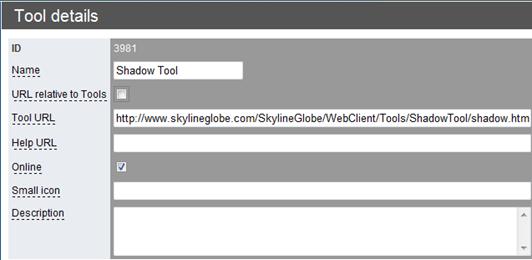
1. Upload your HTML file to the SkylineGlobe Web Package server. 2. In SkylineGlobe Manager, on the Tools page, click Add. 3. On the Tool details page enter · Name - Name of the tool. · URL relative to Tools - When selected, Tool URL, Help URL, and Small icon URL are defined as relative to the SGWP Tools directory. When cleared, the URLs are treated as absolute. · Tool URL - URL of the tool page. · Help URL - URL of the help page. · Online - When selected, tool is accessible. · Small icon - URL of a small (26x13 pixel) icon to represent the tool. · Description – Free text tool description. |
Step 5: Add the tool to the ribbon |
1. In SkylineGlobe Manager, on the Ribbons page, click the Edit button next to the name of the ribbon you want to add the tool to. 2. On the Ribbon details page, add a tool button to the required tab. See “Defining the Ribbon” in the “Creating a Customized Web Application” chapter. 3. Set the button’s actionParam to the ID of the created HTML tool. |
Step 6: Add the HTML tool as default tool (optional) |
§ In SkylineGlobe Manager, on the Customization Details page, enter the Tool ID. |
Tool Details